Prepare for your Webex Video Visit
How to join a Webex video visit using your computer, tablet or smartphone
Webex video visits are a safe, convenient way to connect via video with your OHSU Health clinician from home.
Here’s what you need for a Webex video visit
Webex meeting link
The clinic will provide the Webex meeting link and details via MyChart and/or secure email.
Hardware
- Use an Apple or Android smartphone or tablet, or a computer with a working camera (video), speaker (sound) and microphone (audio).
- To adjust volume, increase or decrease settings on your device.
- Consider using headphones with a microphone for the best sound quality and privacy.
Software
For the best experience, we recommend you download the Webex application on your computer or smartphone. You can also join from your device's web browser, but this may require additional steps.
- For your computer, get the Webex app from the Webex website.
- For Apple or Android devices, get the Webex app from the Apple App Store or Google Play. When downloading or launching the application, accept all permissions for the app, such as to access your camera, microphone, etc.
To join from a website browser, you will need to complete additional steps.
- Use the latest version of one of these browsers:
- Allow browser permissions to access your camera and microphone.
- Turn off pop-up blockers.
MyChart account
You will need MyChart to complete any required questionnaires, obtain the Webex meeting link, review any clinic communications, access your After Visit Summary, etc. If you do not have a MyChart account, your clinic can provide your Webex meeting link via secure email.
- If you don’t have a MyChart account, visit MyChart to sign up.
- For Apple or Android devices, get the MyChart app from the Apple App Store or Google Play.
- Use two-step verification to sign in to MyChart. See this MyChart support webpage and MyChart support video to learn more about two-step verification.
Environment
- Be in a private, quiet, well-lit, distraction-free space for your visit, so your clinician can hear and see you.
- Do not operate your motor vehicle during the visit, or you may be asked to reschedule.
Strong internet connection
- Connect with Wi-Fi, an Ethernet cable or cellular data.
- You will need a minimum upload speed of 2 Mbps and a download speed of 2 Mbps. Run a speed test to check.
- Turn off other devices and close browser tabs and apps to improve connection quality. If your connection is slow or unstable, a wired connection (like an Ethernet cable) may work better.
-
Before your Webex Video Visit: MyChart PreCheck-In
Up to seven days before your visit, go to MyChart and complete PreCheck-In to save time and get the most out of your visit.
- Sign in to MyChart and complete two-step verification.
- Find your video visit from your health feed.
- Get ready for your video visit by completing PreCheck-In, where you answer questions about your medical history, medications and more.
-
Day of your Webex Video Visit: Meeting steps
Complete these steps up to 15 minutes before your scheduled appointment to ensure you are ready when your provider connects.
Obtain the Webex meeting link
The clinic will provide the Webex meeting link and details via MyChart and/or secure email.
If using MyChart:
- Sign in to MyChart and complete two-step verification.
- Find your Video Visit from your health feed.
- Click the View Details button for the link and instructions.
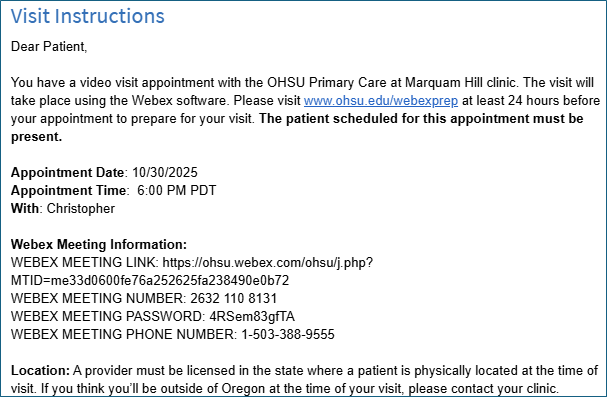
Your MyChart instructions or email will look like this:
Join the Webex Video Visit
Follow these instructions to join the Webex meeting.
- Retrieve your Webex Meeting Information from MyChart or secure email.
- If joining from a website browser, you can either:
- Copy and paste the Webex meeting link into the website address bar (where you type in the website URL).
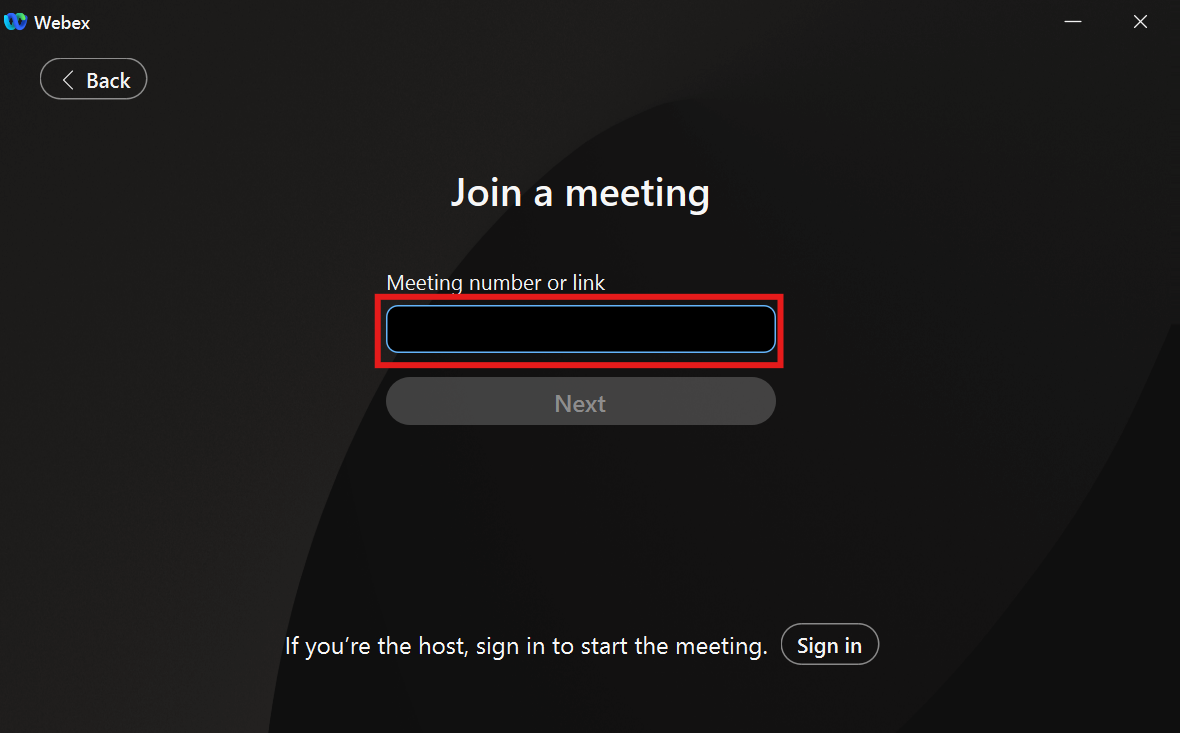
- Alternatively, you can go to the Join a Meeting page, and type in your Webex meeting number and then Webex meeting password.
- If joining from the Webex application, open the application and click Join a Meeting, and either:
- Copy and paste the Webex meeting link into the meeting information field.
- Alternatively, you can type in your Webex meeting number and then the Webex meeting password.
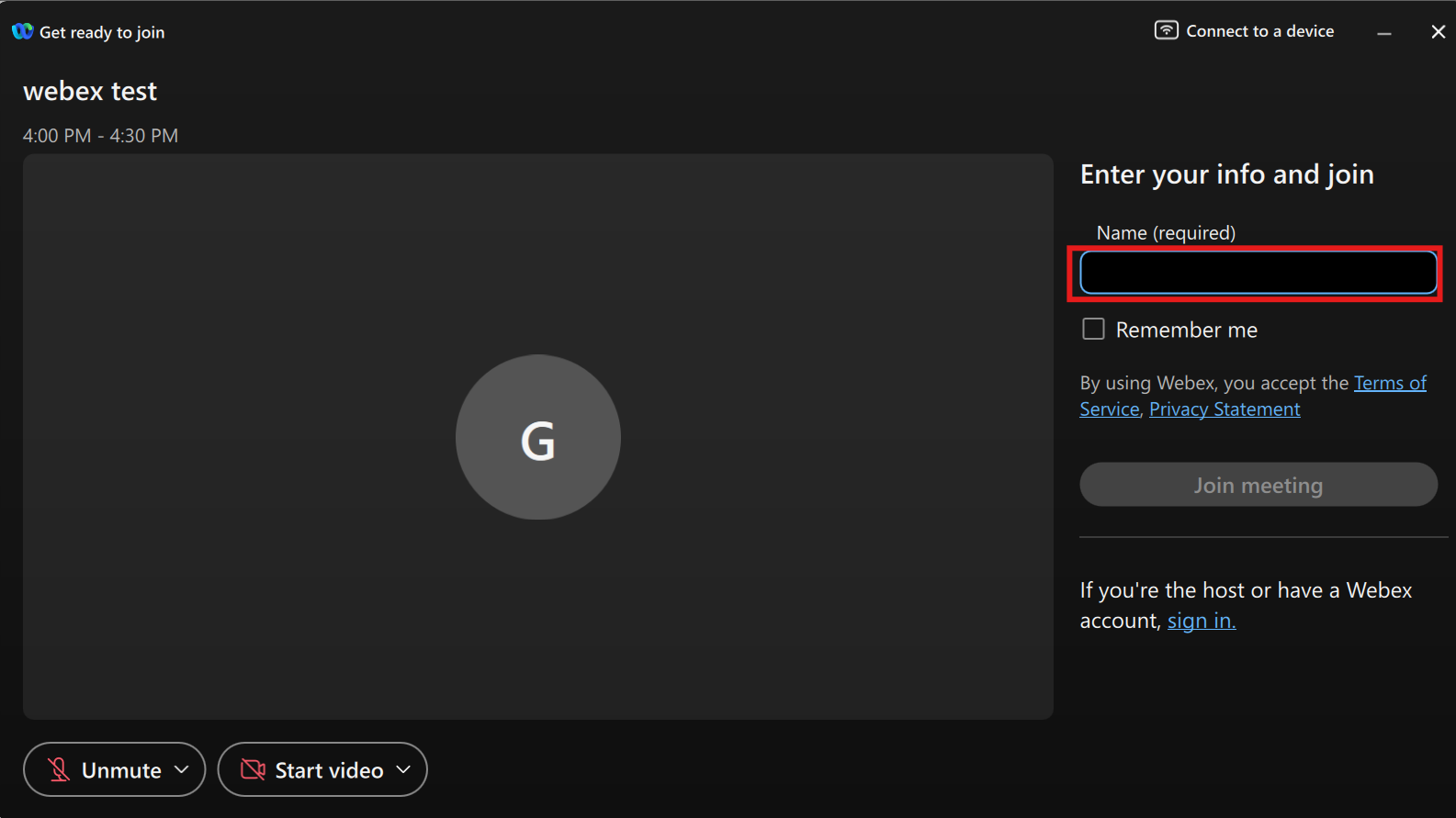
4. When prompted, type in your name as you want it to appear in the meeting.
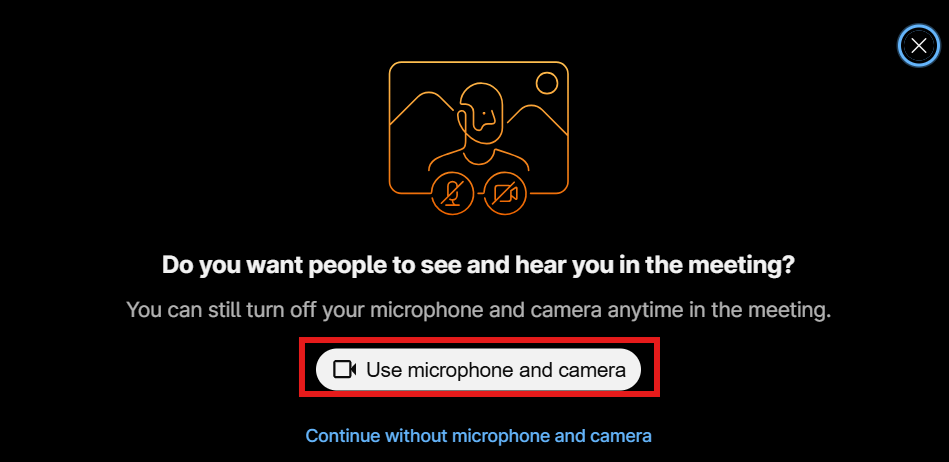
5. Accept any prompts to allow your camera and microphone. You can adjust audio and video settings before you join.
6. Click Join Meeting.
7. Wait for your provider to join.
Troubleshooting
-
Poor audio/video quality (video freezing, low resolution or audio delay)
- You will need a minimum upload speed of 2 Mbps and download speed of 2 Mbps. You can do a speed test here.
- Use a wired connection (like an Ethernet cable) instead of Wi-Fi when possible. It is usually more stable.
- Do not overload your internet by connecting too many devices or using a lot of data at once.
- Close unnecessary programs, applications or browser tabs on your device. Video calls need a lot of processing power.
- Make sure you’re located in a private/quiet area.
- Close other applications and browser tabs that may be using the camera, microphone or speaker. These need to be available and dedicated solely to the video call.
-
Camera or microphone is not working
- Microphone: If you’re using a headset, make sure the mute switch on the cord is off. Also, make sure you aren't muted within the Webex meeting.
- Camera: Make sure your camera is clean and unobstructed.
- Clean smudges.
- Open privacy sliders.
- If you have docking laptop workstation with an external webcam and the laptop is closed, switch your camera device from the laptop’s built-in camera to the external webcam.
- Make sure you allow microphone and camera access on the site you want to use.
- You can allow all sites or just the specific site you’re on. See section below on browser permissions.
- Check your system settings to select the microphone or camera you want to use and that levels are correct.
- Restart your Webex meeting and computer.
- Exit the Webex meeting then rejoin.
- Restart your browser.
- Restart your computer.
- Ensure your browser, operating system, camera and microphone applications or drivers are updated.
-
Video effects and emojis
If you see video effects or emojis, they may be due to other device features or programs. For example, newer versions of MacOS and iPhones support webcam effects (“Reaction” emojis, backgrounds, etc.).
-
Permissions for camera and microphone not granted
If this happens, you may need to troubleshoot settings for your device, operating system or browser. These settings can be specific to a website. Most browsers allow you to quickly access these settings from the website address bar (where you type in the website URL).
Follow these steps to allow camera and microphone permission:
- Go to browser settings to review your permissions for camera and microphone.
- Select or toggle to Allow, if needed.
Browsers:
- Chrome: Click the settings “view site information” icon in the address bar and review your permissions.
- Edge: Click the settings “view site information” icon in the address bar and review your permissions.
- Safari: Control button + click (or 2 finger click) the website/URL for Website Options and then select “Settings for telehealth.epic.com”
- Firefox: Click the permissions icon in the address bar on the left and review your permissions.