How to Make an Appointment

OHSU clinics see patients by appointment only. We do not offer walk-in visits.
Scheduling ahead helps you get care when you need it. Appointments fill up fast, so try to schedule as early as you can.
These options can help you find the soonest time that works for you.
To schedule:
- Call your doctor’s office or clinic directly. Use the find a doctor tool to get contact information.
- Need care soon or want to connect from home? Same-day and telehealth appointments may be available. Find same-day or telehealth appointments.
- Use your MyChart account. You may be able to schedule appointments online.
- Join a waitlist. This can help you get in sooner. Ask your clinic to add you when you schedule an appointment. Or view an existing appointment in MyChart. You may be able to add yourself to a waitlist with a click.
- Turn on text messages to get an alert if a spot opens.
Not sure what level of care you need? Get helpful information for when you should go to the emergency room, urgent care or clinic.
Tips before scheduling
Check with your insurance
- Check to make sure OHSU is covered by your plan.
- If OHSU is not covered in network, your costs may be higher.
- Ask about costs. Your insurance company can tell you what you may have to pay.
- Visit the OHSU billing and insurance page to learn more.
Your personal information
Have this information ready when you schedule:
- Your name
- Your date of birth or Social Security number (for security)
- The reason for your appointment—be specific so you get the right amount of time
- Your preferred doctor (if you have one), or ask for the next available appointment
Tips after scheduling
Register
Be sure to register after you schedule your first visit.
- If you are a new OHSU patient or your insurance has changed, call OHSU Registration at 503-494-8505 to update your information.
- Find more information about preparing for your visit or hospital stay.
Use MyChart
MyChart is a secure online tool that helps you manage your care. In MyChart, you can:
- Schedule or change appointments
- Get reminders and messages
- See test results, bills and prescription info
- Send your doctor a message or request refills
How to get MyChart
- Sign in or sign up for MyChart
- Get help with MyChart
- 503-494-5252 (Monday-Friday, 7 a.m.-6 p.m.)
Choose how you get updates
You can choose to get messages by phone, email and text. You control when and how you get updates.
Setting your choices:
- Go to your MyChart account. Open the main menu on the top left and scroll down to Communications Preferences.
- Check your contact information and choose your settings.
- You can choose the types of messages you want to get, like appointments and billing.
You can also:
- Ask the check-in staff at your clinic for help.
- Watch a video about setting up MyChart Communication Preferences.
How to get text messages without a MyChart account:
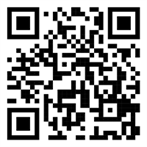
- Text START to 97946
- Scan this QR code
Waitlist offers (earlier appointment options)
Want to be seen sooner? Join a waitlist. Many patients use this to get care faster.
If a spot opens, we’ll let you know. Waitlist offers are first‑come, first‑served, so reply quickly. You can accept or decline.
How to join:
- In MyChart
- Open the Appointment Details for your upcoming visit.
- If available, choose Want to be notified if an earlier visit becomes available? Opt in to notifications.
- When you schedule:
- Ask clinic staff to add you to the cancellation waitlist.
Turn on text messages for faster alerts
To get a text as soon as a spot opens:
- Open the main menu on the top left of MyChart.
- Scroll down to Communications Preferences.
- Go to Appointments.
- Select Advanced Settings.
- Scroll down to Waitlist Offers and turn on.
24-hour cancellation policy
We understand that plans can change. If you need to cancel, please let us know at least 24 hours before your visit. This helps other patients get care sooner.
Some clinics may limit scheduling for patients who cancel twice within 24 hours. If you have questions or need help, call your clinic — we’re happy to help.